
granny63020
Super Members
-
Joined
-
Last visited
Everything posted by granny63020
-
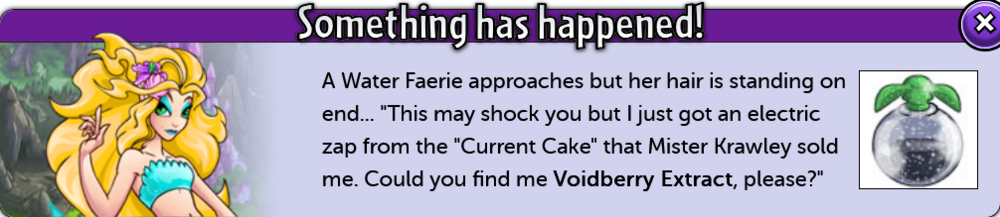
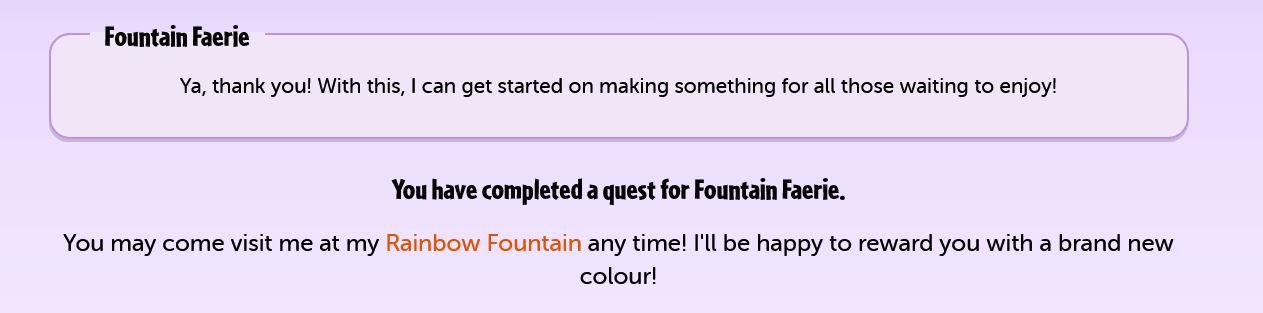
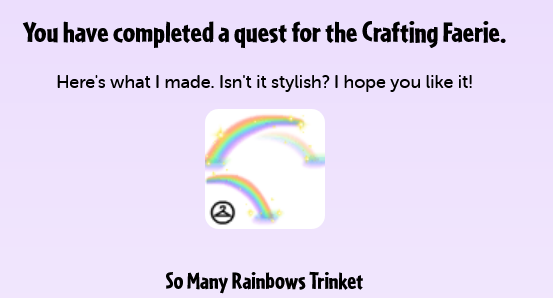
1. You have completed a quest for Water Faerie. For your efforts, Legretta_Abyss's defence has increased!

 I totally agree with you. I would love to keep adding items to my gallery and I do but I am have be thinking maybe I should delete some of the categories and sell off the items to give me more space. Its a shame you pay so much and the amount of space you get doesnt increase with the cost of space. I would like to have galleries on my side accounts but dont for the reasons you stated. Gallery Size Your gallery is currently size 1048 (10480 sq ft. of floorspace). This means that it can hold 5240 items for display. If you would like to purchase some more room to place items in, then please press the upgrade button below.
 Black Pawkeet










Account
Navigation
Search
Configure browser push notifications
Chrome (Android)
- Tap the lock icon next to the address bar.
- Tap Permissions → Notifications.
- Adjust your preference.
Chrome (Desktop)
- Click the padlock icon in the address bar.
- Select Site settings.
- Find Notifications and adjust your preference.
Safari (iOS 16.4+)
- Ensure the site is installed via Add to Home Screen.
- Open Settings App → Notifications.
- Find your app name and adjust your preference.
Safari (macOS)
- Go to Safari → Preferences.
- Click the Websites tab.
- Select Notifications in the sidebar.
- Find this website and adjust your preference.
Edge (Android)
- Tap the lock icon next to the address bar.
- Tap Permissions.
- Find Notifications and adjust your preference.
Edge (Desktop)
- Click the padlock icon in the address bar.
- Click Permissions for this site.
- Find Notifications and adjust your preference.
Firefox (Android)
- Go to Settings → Site permissions.
- Tap Notifications.
- Find this site in the list and adjust your preference.
Firefox (Desktop)
- Open Firefox Settings.
- Search for Notifications.
- Find this site in the list and adjust your preference.